Views and layers
Above the board you pick a view: Process, Systems, Data or Bottlenecks. The cards stay the same. Under View you turn layers on or off, such as the times or the notes.
Four views
You look through one view at a time. The legend at the bottom left follows it. On a phone there’s only the basic view, Process, with no bar and no legend. In 3D and BPMN the bar isn’t there either.
| View | The question | The legend |
|---|---|---|
| Process | Who does what, in what order? | Shapes and signs: the shapes, the arrows, the signs and who does the work |
| Systems | Which system does it happen in, and where does it move from one system to another? | The systems with their colour and number of steps. An arrow that changes system shows from where to where |
| Data | Which data goes where, and where is it retyped? | No legend: a Data panel at the bottom |
| Bottlenecks | Where does it hurt? | The number per kind of bottleneck, and the open questions |
In Data there’s a line per piece of data, with a track along the steps that make and use it. The track says how it’s passed on: retyped, linked, within one system, or nobody said. The colour is that of the system.
Filter the lines with these buttons (a button that would find nothing isn’t shown):
- Retyped
- Nobody said how it crosses
- Changes system
- Comes from outside
You can also search for a piece of data by name. Click a line to follow that data on the board. Drag the grip at the top to make the panel taller or shorter, and use the arrow to fold it away.
Highlight something
In the legend you can click a line: a shape, a system, a kind of bottleneck. Only those steps stay in view. Use the arrows under the line to step through them one by one. Click again to put everything back.
Rename a system
In the Systems view, the pencil next to a system renames it. The new name applies to every step at once. You can only do this if you may edit the board. Choose a name that’s already there and the two systems become one.
The View menu
View has two groups.
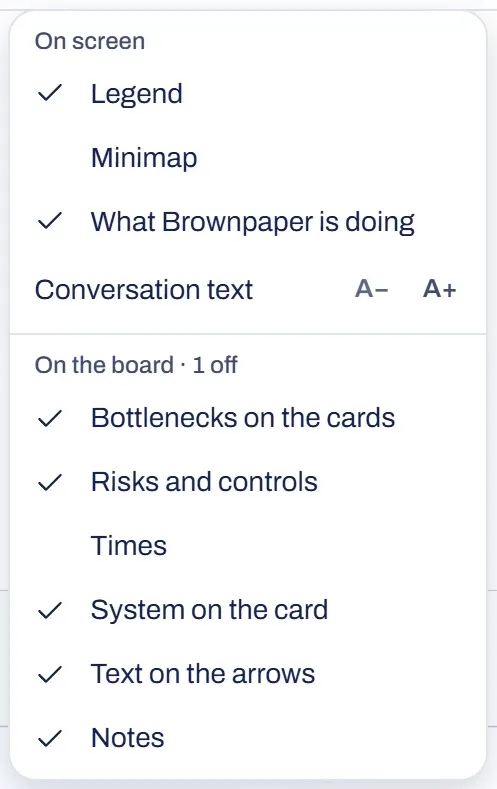
The On screen group holds what’s on the screen:
- Legend
- Minimap
- What Brownpaper is doing
- Conversation text, the size of the conversation text
The legend starts folded to its heading: click the arrow to open it.
The On the board group holds the layers of the board. They’re all on, except the times:
- Bottlenecks on the cards
- Risks and controls
- Times
- System on the card
- Text on the arrows
- Notes
The share on an arrow only shows when Times and Text on the arrows are both on.
In 3D the group is called In the space. It has five layers of its own, separate from the ones on the board. All five are on by default:
- Bottlenecks
- Risks and controls
- Rework
- Notes
- Text on the arrows
If a layer is off, you’ll see a number on the View button and after the name of the group (“On the board · 1 off”). Your browser remembers your choices.