The board in 2D, 3D and BPMN
At the top you switch between 2D, 3D and BPMN. It’s the same board: a change in one view shows up in the other two. 2D is for working, BPMN for people who know that notation, and 3D for showing a process to someone.
| Feature | 2D | 3D | BPMN |
|---|---|---|---|
| Good for | Building and adjusting during the conversation | Showing a process to someone | People who work with BPMN: IT, quality, audit |
| Editing | Everything: drag, insert, draw arrows, panels | Drag, insert and panels; no drawing arrows or selecting several cards | Through the panel: click an element |
| What you see | Cards in lanes, with layers and a legend | Workstations on a floor; a light at a bottleneck or open question | Tasks, gateways and events as the standard defines them |
2D
The board you work on: cards in lanes, with layers and a legend to choose what you see.
BPMN
BPMN is the international notation for processes. Brownpaper converts your board into it automatically. You can pan and zoom. Click an element to open the panel of that card or arrow, and what you change there updates the diagram. Right-click an element for Add a comment, and on a step for a sub-board. Dragging, drawing and deleting happen in 2D.
BPMN has no views or layers: data, systems and annotations are always shown, as in any BPMN diagram. What you see is what you export.
The legend at the bottom left explains the shapes: task, exclusive gateway, start, intermediate and end event. Click a shape to show only those elements, and use the arrows to step through them one by one.
Download the file under Download › Process model (BPMN). Other process tools can open it.
3D
Choose 3D and the board becomes a hall. Each step is a workstation on the floor, each lane a section of the hall, and the cables between workstations are the arrows. Every workstation shows who does the work: a person, a person at a desk behind a screen, or a robot arm. A decision is a signpost, a waiting step an hourglass, the start a gate and the end a finish line. A light above a workstation means there’s a bottleneck or an open question. 2D takes you back to the same step.
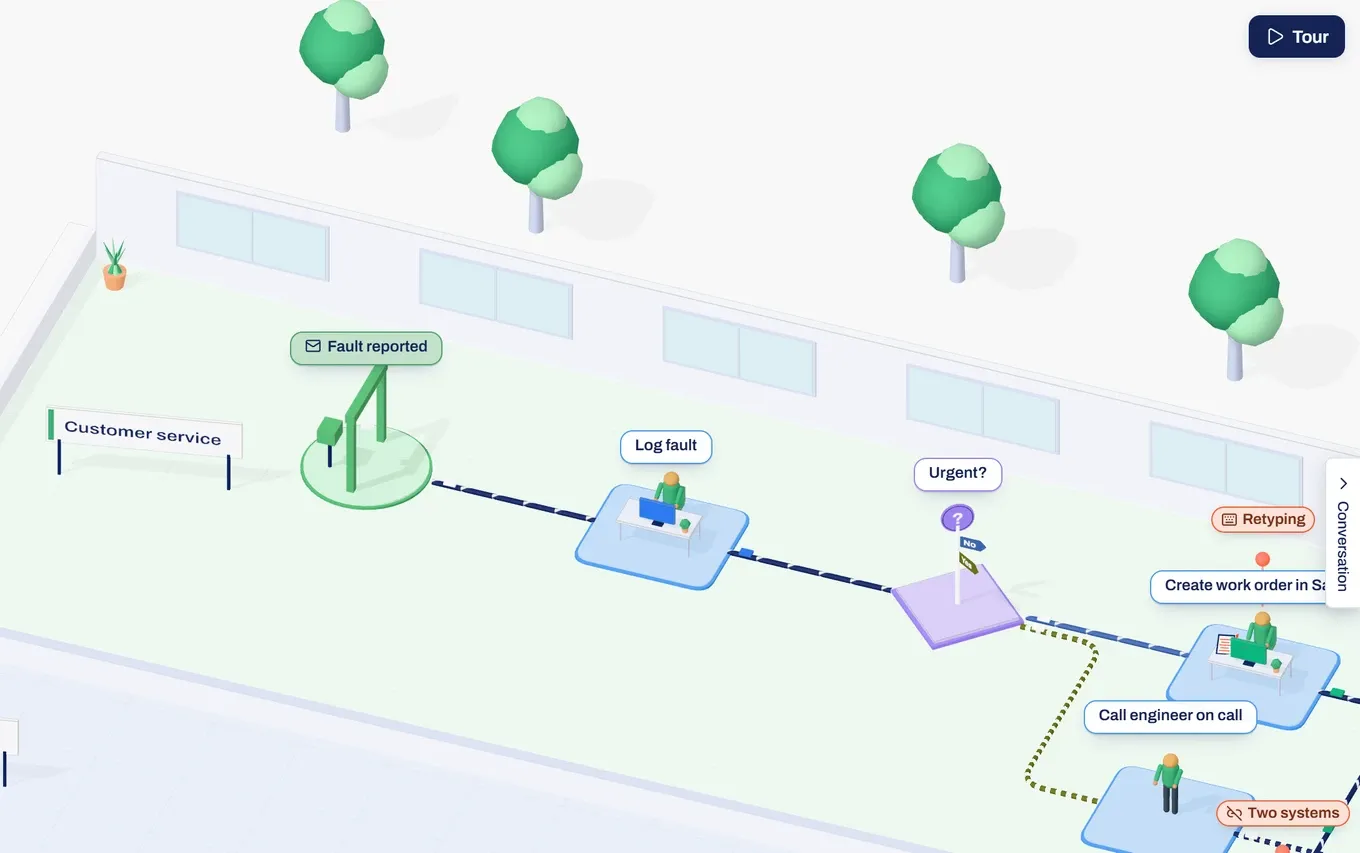
- Look around: drag to pan, scroll to zoom, and hold the scroll wheel down to rotate. Overview at the bottom right fits the whole hall in view, and the two rotate buttons above it turn the hall a little. Those buttons aren’t there on a phone.
- Tour: Tour at the top right walks from workstation to workstation in process order. If you click something along the way, it pauses there, and Resume carries on from that point. In the player, Start takes you back to the first workstation.
- Minimap: turn it on under View › Minimap. The strip at the bottom right is the hall seen from above, with the number of workstations and how often it hurts. Click it to go there.
- Legend: explains what the colours, figures and lights mean, and which object goes with which shape.
- Layers: under View you turn the layers of the space on or off, separately from the layers on the board.
- Editing: double-click a workstation or a cable to open the same panel as on the board. Drag a step across the floor, including into another lane, and drag a Lane from the insert bar onto the hall: it becomes the last lane of the hall and the view moves to it. Right-click the label of a workstation, cable or note to open the menu. Drawing arrows and selecting several cards happen in 2D.
Something not working?
The message says this browser can't draw 3D
3D needs WebGL2 in your browser. Back to the board takes you back to the board. 2D and BPMN work as normal.
The BPMN diagram can't be shown
The message gives the reason. The board in 2D works as normal.