Share a board
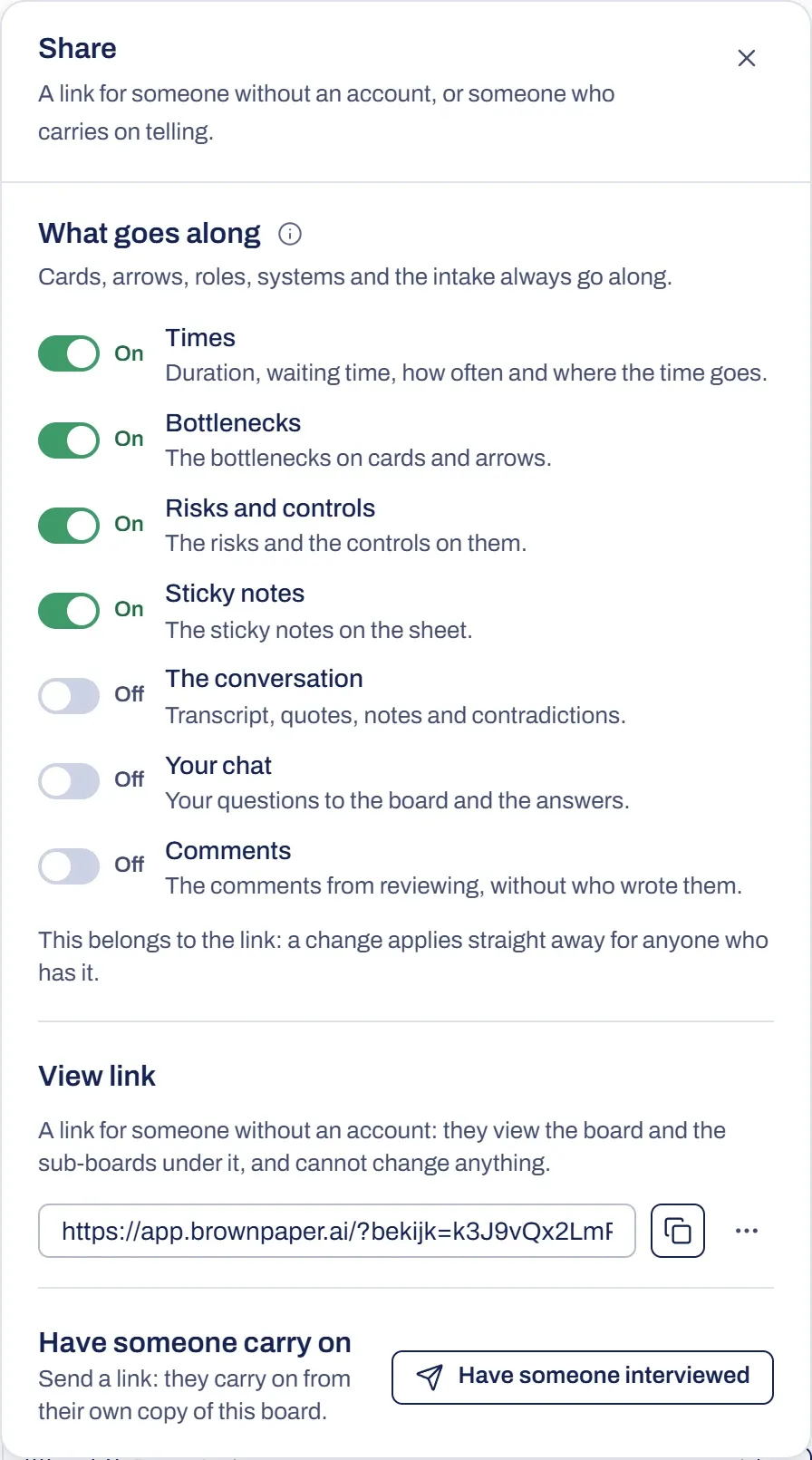
You can share a board in two ways. Colleagues in your organisation get access to view or edit it. Someone without an account gets a view link: it opens the board for viewing only. You choose what goes into the link.
The padlock, Who has access, turns into an icon of people once the board is shared. On a phone, the icons are in the bar’s menu.
Make a view link
- Open Share.
- Under What goes along, switch on what the viewer may see. Cards, arrows, roles, systems and the intake are always included. Each switch says what its layer holds.
- Choose Make and copy view link. The link is copied to your clipboard. If that doesn’t work, copy it from the field.
These layers are off for a new link:
- The conversation
- Your chat
- Comments
Only the person who created the board can make a view link for it. You can’t make one for the example board.
The viewer
The viewer opens the link without logging in and sees the board in 2D, 3D or BPMN, with the sub-boards underneath: a step with a sub-board opens it.
Next to the board are buttons for the layers you included:
- Conversation
- Chat: the viewer reads your questions to the board and the answers, but can’t ask their own.
- Analysis, if Times or Risks and controls is on
- Comments
The viewer can’t change anything: the bar says View only. To work on the board, they use Log in to work together. Someone using a view link has no buttons to export. A colleague who can only view can use Download, but can’t have a report made.
Manage a link
The switches under What goes along apply immediately to everyone who has the link. If a change doesn’t go through, the switch springs back and a message says why.
Next to the link is More for the link (⋯), with two choices. Both ask for a second click.
- New link: the old link stops working. Send the new one to everyone who had the old one. Confirm with Yes, new link.
- Revoke: nobody can open the link any more. Confirm with Yes, revoke.
If someone opens a closed link, they see This link no longer works, with a way to log in if they’re in your organisation.
Give colleagues access
- Open Who has access.
- At Organisation, choose between Private (only you and the colleagues you pick below) and Whole organisation.
- If you chose the whole organisation, choose between View and Edit at Everyone may.
- Under Colleagues, give each colleague View or Edit individually.
Every choice applies immediately, and only the board’s creator can set this.
The people in a project can also see a board in that project, whatever you choose here; the panel shows who they are. A sub-board is visible to everyone who can see the board above it, with the same rights. It doesn’t work the other way round.
Share a whole project
The creator of a project can make a project link: one link for someone without an account, covering every board in the project, including colleagues’ boards, and their sub-boards. Boards added later appear automatically. It’s view-only, and the chat isn’t included. You’ll find it in the project header under ⋯ › Project link, and you create it with Make project link.
Ask someone to contribute
If you want someone to talk along on the board themselves, on a copy of their own, a view link won’t do. Use an interview instead. If you can edit the board, it’s under Share as Have someone carry on.
Something not working?
It says only the person who made the board makes a view link
If the board belongs to a colleague, ask them, or give someone access under Who has access.