Listen-in or interview mode
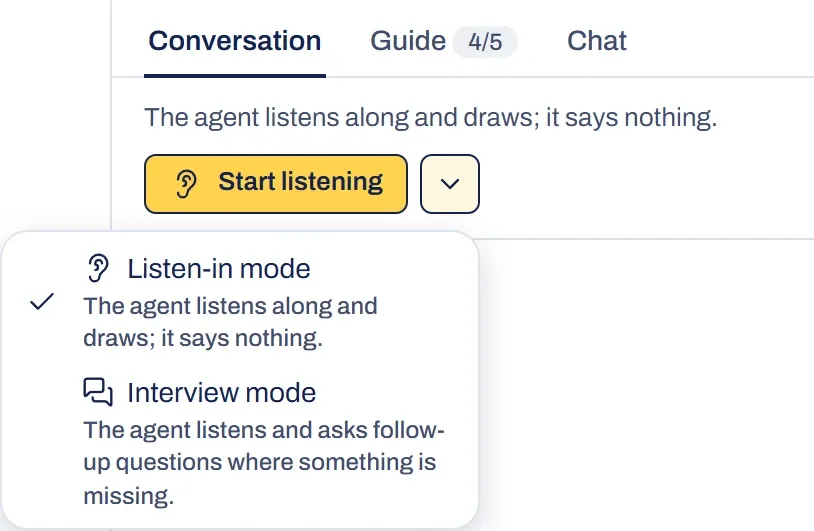
A live session has two modes. In Listen-in mode, you run the conversation and the agent draws the board without saying anything. In Interview mode, you do the talking and the agent asks follow-up questions where something is missing. You pick a mode when you start, and you can switch while nothing is running.
The two modes
Listen-in mode. You run the conversation the way you always do, with a colleague or a client, including in an online call. The agent never speaks; it only draws.
Interview mode. You talk and the agent listens. It speaks when you ask it something, when something important is missing, or when the conversation stalls. This suits capturing your process on your own, with nobody else in the conversation.
Start a session
- Choose Live session, say briefly what it’s about (you can speak it) and click Start session.
- The conversation panel is on the right of the board. If it’s closed, open it with the Conversation handle on the right edge; on a phone, that button is in the toolbar. Use the arrow next to the start button to pick the other mode. Listen-in mode is selected by default.
- Click Start listening or Start interview and start talking. You need a microphone.
You can always type, in the conversation panel next to the board. In listen-in mode, what you type goes straight onto the board. In an interview, a typed question gets an answer straight away.
Set an aim
If you fill in What do you want to find out?, that decides what the conversation covers first. Think of the systems, who does a step, how long something takes, where it gets stuck, which data a step needs, or how decisions turn out. Everything else follows in a final round, so nothing is dropped. Once the process is on the board, your aim itself comes up: in an interview the agent asks about it, and in Listen-in mode it appears under Guide.
In both modes, Guide shows which phase the conversation is in and what hasn’t been covered yet. There’s more in In the background.
Something not working?
The conversation panel says No audio
The message gives the reason, for example that the connection dropped or the microphone was unplugged. You can still type. Then start again with Start listening or Start interview.
The agent doesn't answer, or its voice cuts out
Keep talking. If the agent couldn’t answer just now, the message says so. If only the voice cut out, its answer is in the conversation. If the connection drops, you see Reconnecting and then Connection restored, and the conversation carries on.
The other mode is greyed out
There’s only one microphone, so you can’t switch while a mode is running. Stop the conversation, then choose the other mode.