Have someone interviewed
With Interviews, you send someone a personal link. They don’t need an account: they describe how the work goes, Brownpaper asks the questions and the board fills in as they talk. You see how far along each person is.
Send an interview
-
In the sidebar, choose Interviews and click Have someone interviewed. The button is also on the overview, and on a board under Share in the Have someone carry on block.
-
Choose what the interview continues from:
- An empty board: you set up what the conversation is about, just like a new session.
- A board that already exists: the board’s intake is already filled in. Change what should be different for this interview, and turn on The guest sees your aim if the other person may see your aim. This applies to the copies; the board itself keeps its intake.
The conversation is already in interview mode, so Brownpaper asks the questions.
-
Enter a name and an email address for each person and click Send invitations. The email goes out in the board’s conversation language, with your organisation’s logo and house style if your plan includes them (Pro and Team), and Brownpaper’s otherwise. To see how it arrives, go to House style › Mail.
Each person gets their own link, no account needed
Customer serviceTuesday, between two calls
“A fault comes in by email.”
- Report fault
- Retype email
Done: you see it in Interviews
SchedulingWednesday, during a break
“I put it in the calendar.”
- Read job slip
- Schedule
Done: you see it in Interviews
TechnicianFriday, typed
“I type the hours in afterwards.”
- Fix fault
- Enter hours
Done: you see it in Interviews
The other person’s screen
They start with a short introduction: choosing a language, how it works, and the fact that the agent listens in and your organisation can see the board. Nothing goes onto the board until they click Start.
After that they get a bare screen: the board in 2D, 3D or BPMN, the conversation beside it with the interview first and the Guide, and undo. There’s no account, no menu for sharing or the organisation, and no other boards. Your aim only shows in the Guide if you turn on The guest sees your aim, either when you send the interview or later with Update the intake. Otherwise only Brownpaper uses it.
They click Done to tell you they’re finished. The link keeps working, so they can still add something later. The privacy statement explains what happens to the data.
Statuses
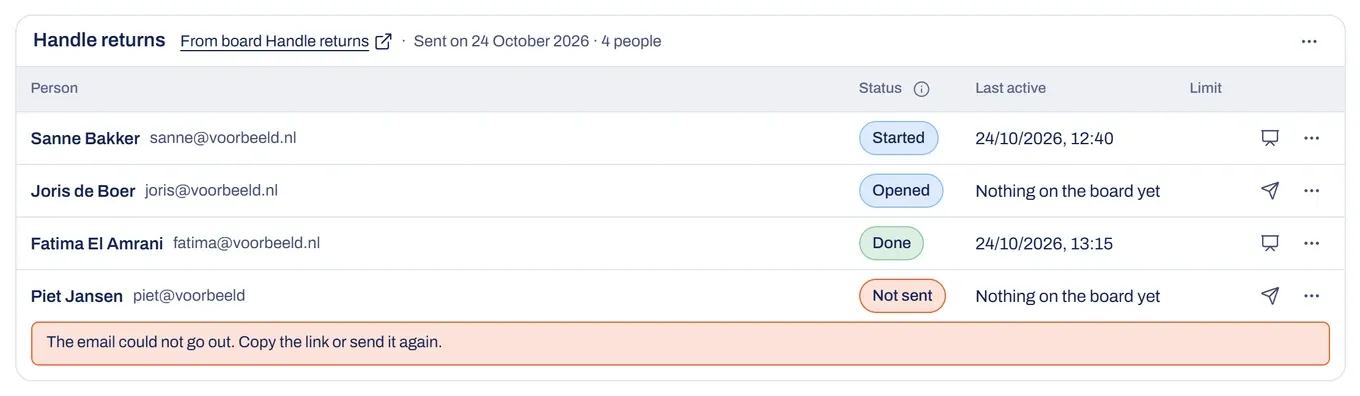
Each person has a status in the Interviews overview.
- Not sent: the email hasn’t gone out yet. Copy the link or send the email again; a copied link counts as sent.
- Sent: the email went out and the link hasn’t been opened yet.
- Opened: the link was opened, but nothing has been said yet.
- Started: the person is telling their story, or has told it.
- Done: the person clicked Done. They can still add more while the link is open.
- Closed: the link no longer works. The board stays.
Update the intake
- Under the ⋯ next to an interview’s title, choose Update the intake. A screen of its own opens with the same fields as when you sent it, even while people are already talking.
- Change what should be different and click Save. Back to Interviews takes you back without saving.
A saved change applies to everyone with an open link and to anyone you add later; someone who’s already talking picks them up at the next question. If you changed a field on one person’s board, that field stays as they have it. The board the interview started from doesn’t change.
Close or delete
To close links, use the ⋯:
- One link: the ⋯ on the row, then Close.
- All links of the invitation: the ⋯ by the title, then Close all.
To add someone later, use Add person, also under the ⋯ by the title. The boards stay with you, also in your regular list, with the name of whoever told their story.
To remove an interview entirely, choose Delete by the title. To remove one person, use Remove on their row. The links close and the interview or person disappears from the overview. This can’t be undone. The boards stay in your list unless you tick the box to remove them too.
Costs
Brownpaper’s work during an interview uses your organisation’s credits, just like your own session. The person you interview pays nothing and doesn’t see a balance.
Each month your plan includes a number of conversations by link. Beyond that, each conversation costs a fixed number of credits as soon as the other person starts: the moment the status becomes Started. It shows in the history under the name of whoever sent the invitation, as Conversation by link, beyond the free number. A link nobody opens, or where nobody starts, costs nothing. How many free conversations are left this month, and what one costs after that, is shown below the people you invite, when you send and under Add person. As long as there are free conversations left, you can always send. If someone wants to start once they are used up and your credits do not cover the conversation, that person waits until there are more credits, and you get one email; your overview shows that they are waiting. If the free conversations are used up and your credits do not cover another one, you can only invite someone again once there are more credits. Your balance never goes below zero because of it.
Each person has a credit limit. Only what happens for that person counts; what you do yourself on their board, and the fixed price of the conversation, aren’t deducted. You set the limit when you send the interview, under Limit per person. If someone needs more, raise it in the overview with Change limit.
Something not working?
The other person can't find the email
On the row, click Email again; it’s there as long as the person hasn’t started telling their story. Or open the ⋯ on the row, choose Copy link and send the link yourself.
The board stops growing
The conversation time on that person’s link is used up. Open the ⋯ on the row, choose Change limit and raise the limit; then they can continue. The board is saved, and the other person sees that their conversation time has run out.
The other person sees that the credits have run out
Your organisation’s credits have run out, so what that person says no longer reaches the board. Top up the credits.
The link doesn't work
If that person’s status is Closed, the link is closed and they can’t continue with it. Otherwise the link may not have arrived intact: choose Copy link and send it yourself.